Quick answer: for most Indian schools, a cloud school ERP costs less over time and is safer than an on-premise school ERP, because the vendor handles servers, backups, security and updates, and every branch and app can reach the same live data. On-premise suits only schools with strict rules about keeping data on site and an IT team to run it.
Last updated: November 2026.
Many schools still run software installed on a computer or server in the office. It worked when the school had one office and no apps. Today parents pay fees from their phones, teachers mark attendance in class and management checks every branch from home. That changes the answer.
What is the difference?
An on-premise school ERP is installed on a server or computer that the school owns and keeps on campus. The school is responsible for the hardware, backups, security and updates.
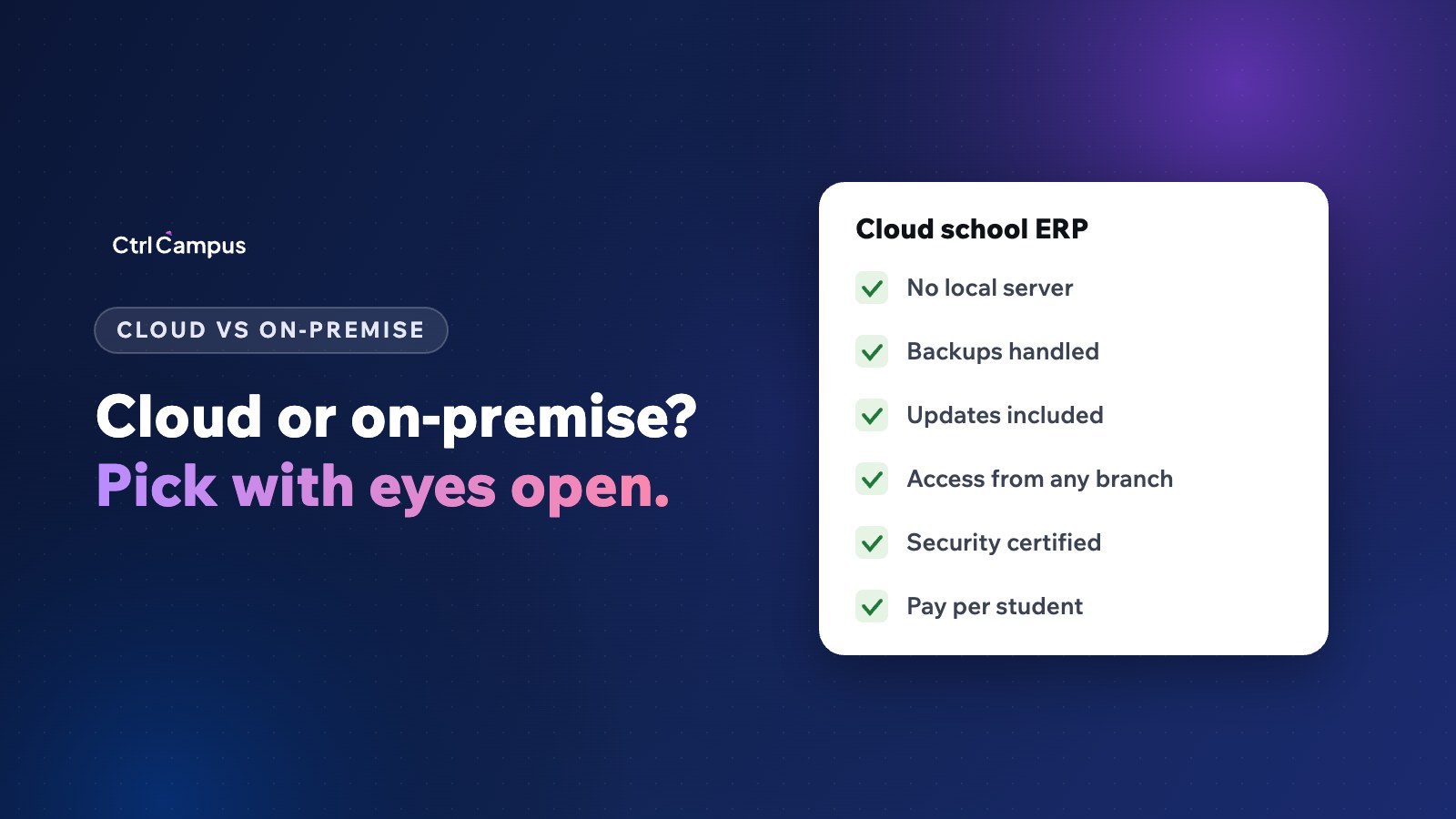
A cloud school ERP runs on the vendor's servers in a data centre. Staff, parents and management reach it through a browser or app, and the vendor runs the infrastructure.
Cloud vs on-premise school ERP: side by side
Upfront cost
- On-premise: a licence fee, a server, sometimes networking and a UPS.
- Cloud: no hardware; a yearly subscription, often per student.
Running cost
- On-premise: an annual maintenance contract, IT staff time, electricity and replacement hardware.
- Cloud: included in the subscription.
Backups
- On-premise: the school must take, test and store backups off site. Many schools discover their backups don't work only when they need them.
- Cloud: the vendor backs up automatically.
Security
- On-premise: depends on the school's own firewall, passwords and patching.
- Cloud: depends on the vendor. Ask for certifications such as ISO 27001.
Updates
- On-premise: upgrades are projects, sometimes charged separately.
- Cloud: new features arrive without installation.
Access
- On-premise: mostly inside the campus network, unless the school sets up remote access.
- Cloud: from any branch, the principal's phone, the parent app and the staff app.
Internet dependence
- On-premise: the office can keep working during an outage, but apps and online payments still need the internet.
- Cloud: needs a working connection. A backup mobile connection in the office covers most outages.
What each option really costs over five years
When you compare, add up five years, not one. For an on-premise system, count the licence, the server and its replacement, the AMC, the hours your IT person or a local vendor spends on backups and fixes, and any paid upgrades. For a cloud system, count the yearly subscription for your expected strength over the same five years. Then add the tools each option still leaves you to buy, such as a separate parent app or bus tracking. The cheaper upfront option is often the more expensive one by year three.
When on-premise school ERP still makes sense
- A trust or government rule requires data to stay on campus.
- The school has a capable IT team and a tested backup routine.
- The school doesn't need parent apps, online fees or multi-branch access.
These cases are rare today. Most schools that run on-premise systems do so because that was the option when they started.
Security myths about cloud school software
"Our data is safer in our own office." Not necessarily. A server in a staff room can be stolen, damaged by a power surge or left unpatched. A certified data centre has physical security, redundant power and monitoring around the clock. The real question is how good the vendor's security is, which is why certifications and written commitments matter.
"The vendor can see all our data." Ask what access the vendor's staff have and how it is logged. Under India's DPDP Act, the school remains responsible for its vendors, so these answers matter. Read our DPDP Act guide for schools and our checklist of student data security controls.
Questions to ask your IT person before deciding
- When did we last restore our data from a backup, and did it work?
- How many hours a month do we spend keeping the server running?
- What happens if the server fails during fee week?
- Can parents and teachers reach the system from their phones today?
- How would we add a new branch?
If the answers are uncertain, the cloud option removes most of these risks.
A checklist for choosing cloud school software
- ISO 27001 or a similar certification.
- A written uptime commitment.
- Automatic backups and a clear recovery process.
- Role-based access, so staff see only what their job needs.
- Data export and deletion if you leave.
- Apps for parents and staff on the same data.
- Pricing that includes hosting, updates and support.
Moving from on-premise to cloud
The move is a data migration: students, parents, fee history, marks and staff records are exported from the old system and loaded into the new one. Plan it for a quiet period, check the figures before switching off the old system, and train each office. Our guide on switching school ERP mid-year covers the steps.
How CtrlCampus runs
CtrlCampus is a cloud school management platform. It is ISO 27001 certified with a 99.9% uptime SLA, so every branch, the CtrlGo parent app and the CtrlOne staff app work from the same live data. There are no servers to buy, and updates arrive without installation. If a school leaves, we delete its data and confirm it in writing. Read more on our security page, or see how Oaktree Kidz runs on it.
FAQ: cloud vs on-premise school ERP
Is cloud school ERP safe?
It can be safer than a server on campus, provided the vendor is certified, controls access and backs up your data. Ask for evidence.
What if the internet goes down?
Keep a backup mobile connection in the office. Parents and teachers using apps are on mobile data anyway.
Is cloud ERP cheaper?
Usually over several years, because hardware, backups, IT time and upgrades are included in the subscription.
Can we export our data from a cloud ERP?
You should be able to. Ask for this in writing before you sign.
Does a cloud ERP work for multiple branches?
Yes. It is the easiest way for a school group to see every branch in one place. Book a demo to see it.