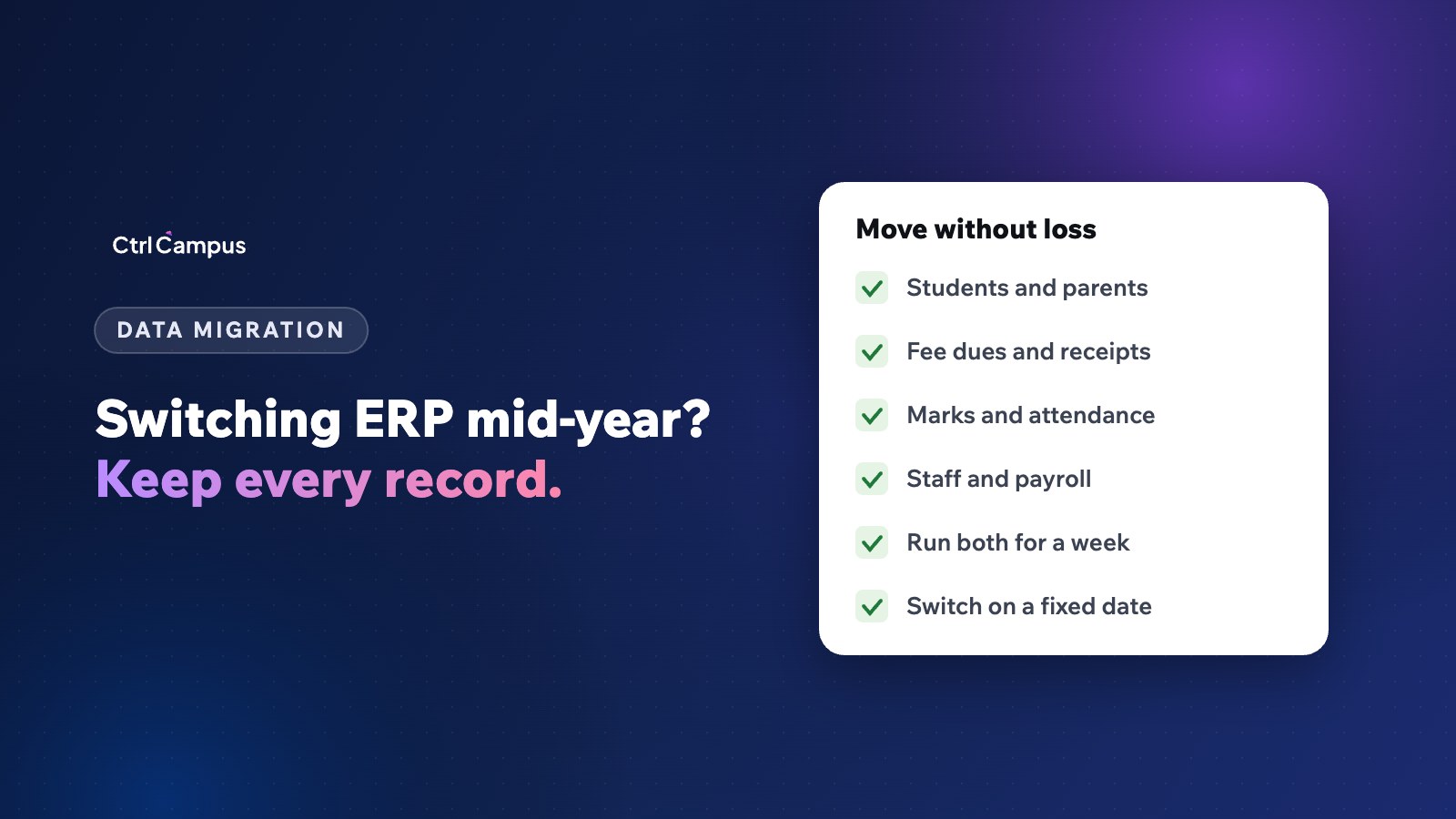
Quick answer: switching school ERP mid-year is safe when you move data in a planned order (masters first, then balances, then history), check totals against the old system, run both systems side by side for a short period and switch on a fixed date outside exam and fee peaks.
Last updated: November 2026.
Most schools put off switching software until the next academic year, even when the current system is failing them. Sometimes that is right. But waiting another eight months while fees go uncollected, enquiries go cold and staff re-type data has its own cost. This guide shows how to make the move in the middle of the year without losing records.
When switching school ERP mid-year makes sense
- Your current vendor has stopped responding or is shutting down.
- Fee collection or reconciliation errors are costing you money every month.
- Admissions for next year start soon and your current system has no CRM.
- You are opening a new branch and need one system for all.
It usually makes less sense in the weeks around board exams or the main fee due dates.
What data needs to move
Masters
- Classes, sections, subjects and the academic calendar.
- Students with parent contacts, admission numbers and class.
- Staff with roles, departments and pay structures.
- Fee structures, instalments and concessions.
- Bus routes and stops.
Balances
- Fee dues per student, including concessions applied.
- Advance payments and refunds.
- Leave balances for staff.
History
- Receipts already issued this year.
- Attendance and marks so far.
- Salary paid this year, for tax and PF records.
Data quality checks before loading
- Every student has an admission number, class and at least one parent mobile number.
- No two students share an admission number.
- Fee dues per class add up to the total in the old system's dues report.
- Every staff member has a department, a pay structure and a joining date.
- Bus stops are spelled the same way everywhere.
A step-by-step migration plan
- Pick a cut-over date. Choose a date after a fee cycle closes and away from exams.
- Export everything. Get full exports from your current vendor, ideally in Excel or CSV. Ask early; some vendors are slow.
- Clean the data. Fix duplicate students, missing parent numbers and wrong classes before loading.
- Load masters first. Classes, students, staff and fee structures.
- Load balances. Fee dues and leave balances as on the cut-over date.
- Load history. Receipts, attendance and marks for the year so far.
- Reconcile. Compare total students per class, total fee dues and total collected with the old system. They must match.
- Train each office. Accounts, admissions, class teachers and transport, each on their own tasks.
- Run in parallel. For a short period, record new transactions in the new system and check them against the old one.
- Switch off the old system. Keep a final export for your records.
A sample cut-over week
- Monday: final export from the old system after the day's collections.
- Tuesday: load and reconcile masters and balances; fix mismatches.
- Wednesday: accounts and admissions staff trained and practising on real records.
- Thursday: class teachers and transport trained; parents informed on WhatsApp.
- Friday: the new system becomes the system of record; the old one is read-only.
- The following week: daily checks of collections and attendance, then the old system is switched off.
Telling parents
Parents notice the change when the app or payment link changes. Send a short WhatsApp message a week before: what is changing, how to log in to the new app, and that their fee balances have been carried over. A second message on the day helps.
Common migration problems
- Mismatched dues. Usually caused by concessions or part-payments recorded differently. Reconcile class by class.
- Duplicate students. Siblings sharing phone numbers often create duplicates. Match on admission number.
- Missing history. If the old vendor can't export receipts, keep a PDF archive and load opening balances only.
- Staff resistance. Train early and show each office the time it saves.
What to ask the new vendor
- Who does the migration, your team or ours?
- How do you check the data matches?
- How long will both systems run in parallel?
- What support is there in the first month?
Our 15 questions to ask vendors and the implementation checklist go further.
How CtrlCampus handles switching
Going live on CtrlCampus takes five steps: kick-off, data migration, setup, training and go-live. Your existing student, fee and staff records are moved across in the migration step, and your office is trained before you switch over. Because admissions, fees, attendance, transport, HR and parent apps are on one platform, you move once instead of replacing several tools one at a time. Read the Oaktree Kidz case study or see our implementation page.
FAQ: switching school ERP
Can we switch school ERP in the middle of the year?
Yes, with a fixed cut-over date, a clean data export and a reconciliation of totals before switching off the old system.
How long does migration take?
It depends on the size and quality of your data. Getting the export from the old vendor is often the slowest step.
Will parents lose their fee history?
No, if receipts and dues are migrated. Where history can't be exported, opening balances are loaded and old receipts kept as an archive.
Should we run two systems at once?
Briefly. A short parallel run catches mistakes, but a long one doubles the work.
What is the best time to switch?
After a fee cycle closes and away from exams. Many schools pick the start of a new term. Book a demo to plan your move.